Prepare an application
UK ETA app won't scan your passport? Skip the app and apply with two photos
If the UK ETA app won't scan your passport, skip the app: a UK ETA can be applied for with a photo of the passport page and a photo of your face, and no chip scan. ETAS takes those two photos from any phone or computer, checks them before submitting and asks for a retake if one falls short, so a phone without NFC or a chip that will not read no longer stops you.
Written by Sofia Horvat for ETAS21 November 2026 · 5 min read
Skip the chip scan: apply with two photos
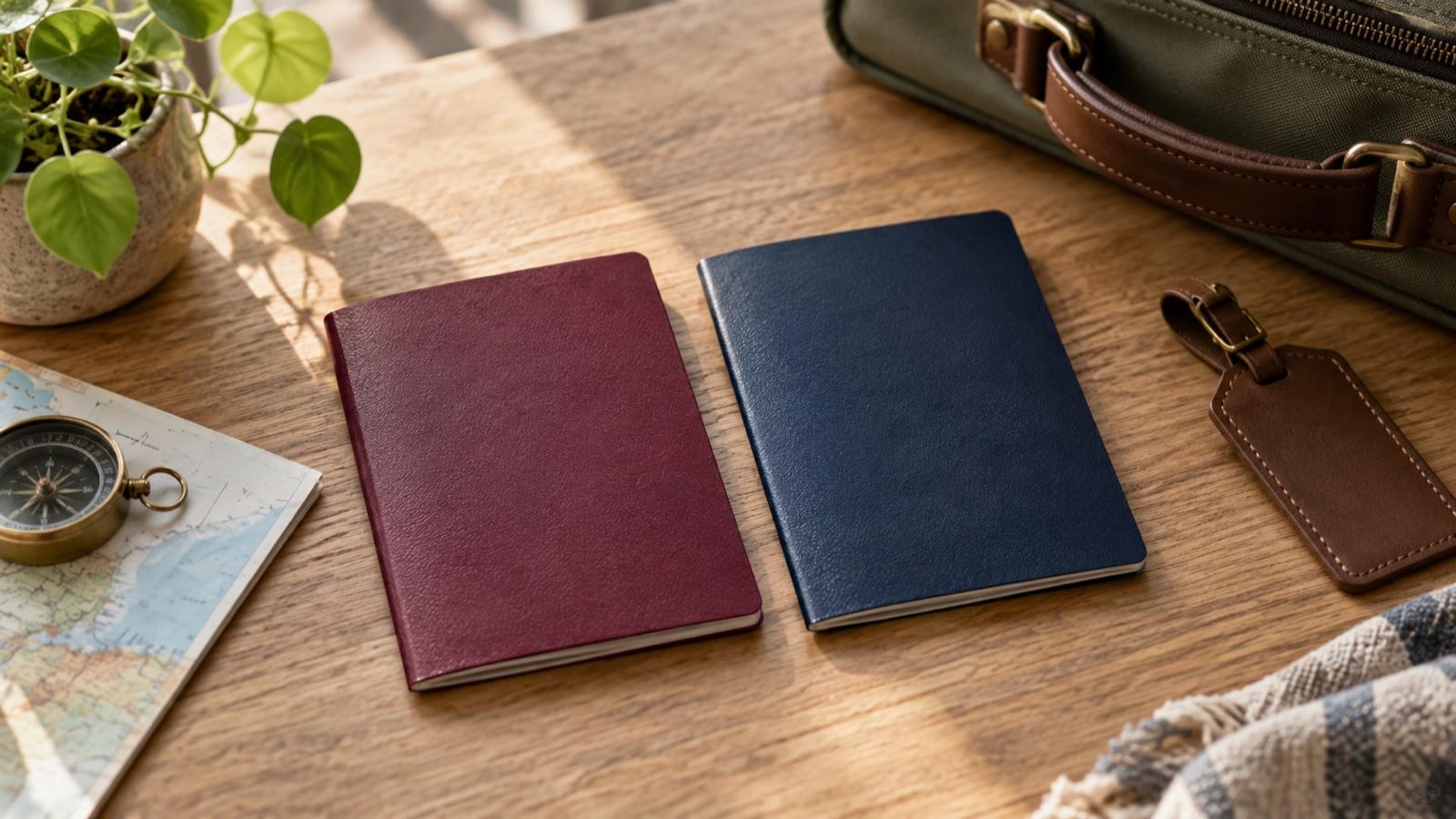
The chip scan only exists in the app. ETAS works from two photos instead: one of the passport's photo page and one of the traveller's face. It needs no NFC, no particular phone and no app download.
The photo route also works when the traveller is not with you, which the app does not: it only works when the person you apply for is with you. If the scan has failed twice, stop trying and switch to photos.
How ETAS turns two photos into a submitted ETA
- Book on etas.one with the passport country and names, and choose how quickly we submit.
- Upload a photo of the passport's photo page and a photo of the traveller's face, from a phone camera or a file on a computer.
- We check each photo and, if one falls short, send you a specific retake request at no extra cost.
- A person on our team reviews the finished application with you before anything is sent.
- After you authorise it, we submit the application and keep you updated until the decision arrives.
Choose Standard (£99, we aim to submit within 24 hours), Priority (£149, we aim to submit within 2 hours) or Express (£164, we aim to submit within 30 minutes). Each price is per traveller with the Home Office fee included, and the time runs from complete details and suitable photos. The Home Office makes its own decision; no service can make it decide faster.
What ETAS checks in your photos
- All four corners of the passport page are in the frame.
- No glare on the laminate, no blur and enough light to read every character.
- The photo shows the original passport, not a photocopy, a screen or a digital passport.
- The two lines of letters at the bottom of the page match the passport number, birth date, expiry and nationality you typed.
- The face photo shows one person, facing the camera, with the whole face visible.
How to take a passport photo that passes first time
- Lay the passport open on a dark, plain surface with the photo page facing up.
- Fit the whole page in the frame, all four corners, with a little background showing.
- Use daylight from a window and no flash. Tilt the passport slightly if the laminate shows a white glare.
- Keep fingers, covers and other cards out of the picture.
- Zoom in before you upload: you should be able to read every character of the two lines at the bottom.
For the face photo, stand against a plain light wall, face the camera with a neutral expression and keep glasses free of glare. Our UK ETA photo requirements guide lists every rule for the face photo, including the exceptions for children. Take both photos now, on the phone you are holding, and you are ready to upload.
Why the app cannot read some passports
- The phone is too old: the app needs an iPhone 7 or newer on iOS 16 or later, or Android 12 or later with NFC.
- NFC is switched off in the Android settings, or the phone has no NFC at all. A phone that cannot pay contactless has none.
- A phone case or card wallet sits between the phone and the passport.
- The passport has no ePassport symbol on its cover, so there is no chip to read.
- There is too little storage: the app needs about 179MB on iPhone and 165MB on Android.
None of these matter with ETAS, because nothing reads the chip. If any of them applies to you, upload photos instead of looking for a different phone.
Want to give the app one more try?
- Take the phone out of its case and remove the passport's cover.
- Lay the passport closed on a table and put the top of the phone at its middle.
- Hold still for a beep, then slide the phone slowly around if nothing happens. With a US passport, try the inside of the back cover.
If the scan still fails, the app reads your details from a passport photo instead, so the photo has to be just as good. If the app is giving you trouble anyway, that is the moment to let ETAS check the photos and submit for you.
Start with the photos you can take now
Start your application, upload the two photos from the device in your hand and we take it from there: photo checks, a retake request if needed, a human review in your language and the submission. One booking covers the whole family, and you pay once by card, Apple Pay or Google Pay. ETAS is an independent private service; the UK government makes the decision.
Keep reading
Browse all posts- Prepare an applicationUK ETA photo requirements: the rules and why photos get rejected21 November 2026 · 5 min read
 Prepare an applicationUK ETA photo requirements: the rules and why photos get rejectedUK ETA photo requirements: size, background, glasses, head coverings and babies, plus the passport page photo, why photos get rejected and how ETAS checks yours before submission.21 November 2026 · 5 min read
- Before you travelGot a new passport? Check your UK ETA before travelling26 September 2026 · 6 min readBefore you travelGot a new passport? Check your UK ETA before travellingA UK ETA is linked to the passport used to apply. Follow this checklist if a passport is renewed, replaced, lost or changed before a UK trip.26 September 2026 · 6 min read
- Prepare an applicationApplying for a UK ETA in your own language20 November 2026 · 4 min readPrepare an applicationApplying for a UK ETA in your own languageThe UK ETA questions are written in English. See where language causes mistakes, and how ETAS takes you through every question in your language and checks your answers before submission.20 November 2026 · 4 min read